Objective: Create a Knight Rider effect on the digital output LEDs of a RevPi Compact with CODESYS. The LEDs light up one after another from left to right and back again.
The preprogrammed example project is available in a GitLab Repository.
Prerequisites #
Devices
Hardware Installation
✓ RevPi Compact is connected to the network.
✓ RevPi Compact is connected to the power supply.
Software Installation
✓ CODESYS Development System (CODESYS) is installed on your PC.
✓ CODESYS runtime is installed in the CODESYS Development System.
✓ RevPi I/O driver is installed in the CODESYS Development System.
✓ CODESYS is connected to the RevPi.
✓ CODESYS runtime is installed on the RevPi.
See also Setting Up the CODESYS System with RevPi.
1. Opening the Example Project #
▷ Download the example project KnightRider from the GitLab Repository.
▷ Open the example project in CODESYS.
❯ The example project opens with the preprogrammed running light control.
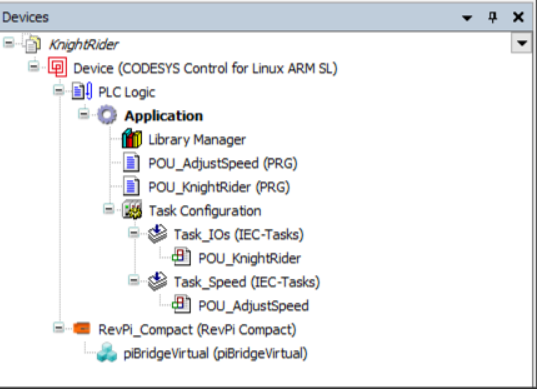
Setup in the CODESYS device tree:
Functionality of the Example Program
The example project contains two program organization units (POUs) that are called by separate tasks:
-
POU_AdjustSpeed is called by Task_Speed and sets the time interval for the LED sequence based on the analog input AI_CH1.
-
POU_KnightRider is called by Task_IOs and controls the digital outputs so that the running light moves from left to right and back again.
2. Downloading and Starting the Application #
▷ Select Generate Code (F11) in the menu bar to compile the program.
▷ Open the root device.
▷ Select Scan Network in the Communication Settings.
▷ Select the RevPi and establish the connection to the device using OK.
▷ Select Login (Alt+F8) in the menu bar to log in to the RevPi.
▷ When you log in for the first time, create a user by following the wizard and entering your login details.
▷ In the Device User Logon window, log in to the RevPi.
▷ The first time, confirm the download of the application to the RevPi by Yes.
❯ The application is transferred to the RevPi and is ready to run.
▷ Select ⯈ (F5) in the menu bar to start the application.
3. Checking the Light Effect #
▷ Observe the digital output LEDs on the RevPi Compact.
❯ The LEDs light up one after another from left to right and back again.
▷ Change the input voltage at AI_CH1 within the range 0 … 10 V.
❯ The speed of the running light changes with the input signal.